Getting Started with Chop
Get the Plugin
First, you need to install the Chop plugin from the Roblox Plugin Marketplace. You can get that here .
Allow Permissions
Once Chop is installed, it will need permissions to perform two key actions. When prompted, please allow Chop to:
- Download the Roblox API dump via httpservice.
- Manage scripts in your game.
These permissions are absolutely necessary for Chop’s luar and analysis features to function correctly.
Enable Chop in Your Project
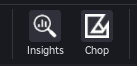
After setting permissions, open a project that contains a Mince module. In the Plugins tab of the Studio toolbar, you should see a button for Chop. Click this button to enable or disable the luar features for the current project.
Verify Chop Has Started
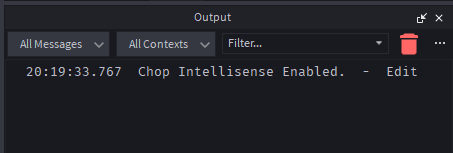
Check the main Roblox Studio Output console. You should see a message confirming that Chop has successfully started and is monitoring your scripts.
Troubleshooting
If you encounter any errors during setup or if Chop doesn’t seem to be working correctly, please check the custom Chop debugger console for more detailed information.
For instructions on how to access it, see the Debugger Guide.