The Chop Debugger
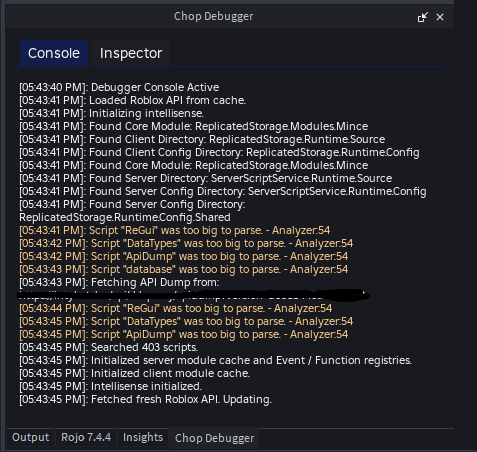
Chop includes its own custom debugger console within Roblox Studio. To avoid clogging up the main Studio output with parsing information, Chop reports its own specific issues, warnings, and errors to this separate window.
Accessing the Debugger
The debugger widget is accessible through a PluginAction, which means you can bind it to any keyboard shortcut you like.
Setting Up Your Shortcut
-
In Roblox Studio, navigate to File > Customize Shortcuts…
-
In the search bar, type “chop” to filter the actions.
-
Find the action named “Open Chop Debugger” and select it.
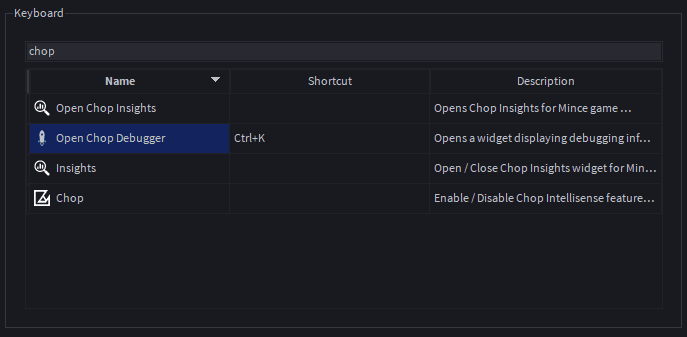
-
Click in the “Shortcut” column and press the key combination you want to use. (For example, a common binding is
Ctrl + K). -
Click OK.
Once the shortcut is set, you can use it at any time to toggle the visibility of the Chop debugger widget.
Interpreting Console Output
Seeing a warning or an error in the Chop console does not necessarily mean the plugin is broken or that there is a critical issue with your game.
Chop is constantly parsing your scripts as you type. It is expected that there will be temporary errors when it analyzes malformed or incomplete code. These messages are part of the normal operation and help the plugin understand your code’s structure in real-time.